Use Layers from Other Mappers in the FWS Land Mapper
You can import data layers from other ArcGIS Online-based mappers into the FWS Land Mapper. An example of this would be hunting area boundaries which are published on a State game management online mapper, but which are not present in the FWS Land Mapper. This allows you use the FWS Land Mapper to view the hunting area boundaries in relation to National Wildlife Refuges, National Parks, wilderness areas, and other layers that are in the FWS Land Mapper.
Formats that can be Imported into the FWS Land Mapper
|
|
KML (Keyhole Markup Language) This is the standard KML format that is used by Google Earth and other programs that support .kml files. It supports the geometry of features plus their attbitute values. |
|
|
|
|
|
GPX (GPS Exchange) This is a standard format that is designed to be used with various GPS units and programs that support the .gpx file format. It supports only the geometry of features. Attribute information is not supported. |
|
|
|
|
|
GeoJSON (Geographic JavaScript Object Notation) This is a standard format that includes the geometry of features plus their attbitute values. It is widely used by ESRI's ArcGIS system, and any other program that supports the GeoJSON format. |
|
|
|
|
|
Shapefile (ESRI Shapefile) This is ESRI's standard and widely-supported format that includes the geometry of features plus their arrtibute values. |
|
|
|
|
|
AGOL hosted layer (ESRI ArcGIS Online hosted layer) Feature layers that are hosed on the ArcGIS Online platform. To add layers, you can use the AGOL Search function, or directly enter a hosted feature layer's full URL. Feature geometry and feature attributes are supported. |



How to Import Layers from Other Mappers into the FWS Land Mapper
The primary method to import data from other sources is to use the Add Data tool. To import data that are in the KML, GPX, GeoJSON, and shapefile formats, follow the instructions for the Add Data tool. If you need to import a data layer from another AGOL-based mapper, you can either search for the layer, or directly enter the layer's URL.
Search for a Layer
1) Click the More icon on the left-hand side of the FWS Land Mapper window.
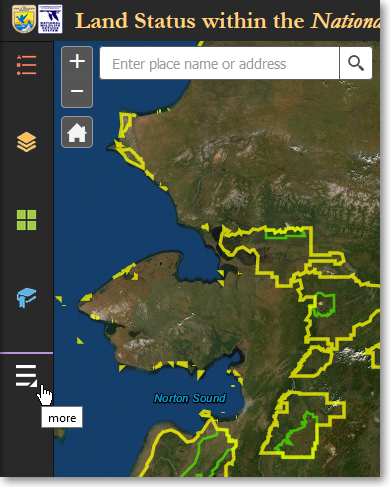
Click the More icon to show the Add Data panel
2) On the Other Panels panel, click Add Data.
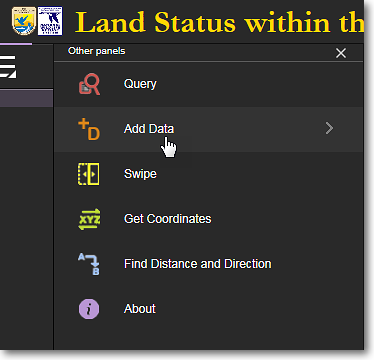
Click Add Data
3) The Add Data panel has three tabs at the top of the panel. These tabs let you search for and add data layers that are in various formats. Click the Search tab.
|
Click the Search tab, enter a search term, and select the desired data layer |
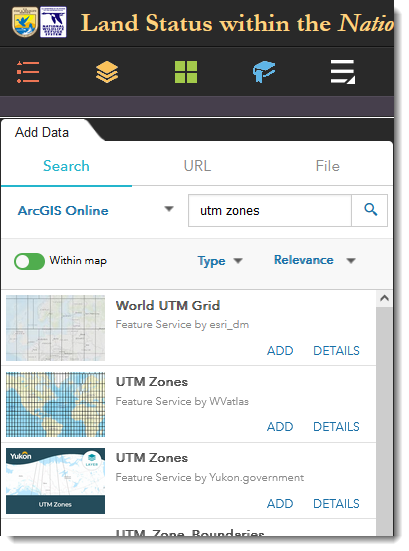
4) The Search tab lets you search for data layers that are available on ArcGIS Online. For example, if you want to add UTM zones to the Mapper, enter utm zones in the Search box and press Enter. Select the desired layer and click Add. You can also customize your search using the Within Map, Type, and Relevance options.
Directly Enter an ArcGIS Online Data Layer's URL
1) Using the functions within another ArcGIS Online mapper, determine the layer you want to use and then obain the URL for it. For example, to obtain the URL for the State Mining Claims layer in the BLM-Alaska Lands, Minerals and Realty mapper, find the State Mining Claims layer in the Layers panel, click the three dots to the right of the layer's name, then select Description from the pop-up menu.
|
|
|
Click the three dots and select Description |
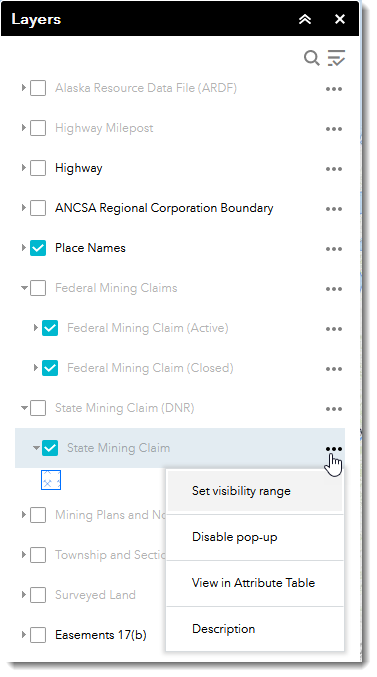
2) In the web page that pops-up, note the full URL that is displayed in the web browser's address bar. With your mouse cursor, select the entire URL and use your computer's Copy function to copy the URL to the clipboard.
|
Select the full URL and copy it to your computer's clipboard |

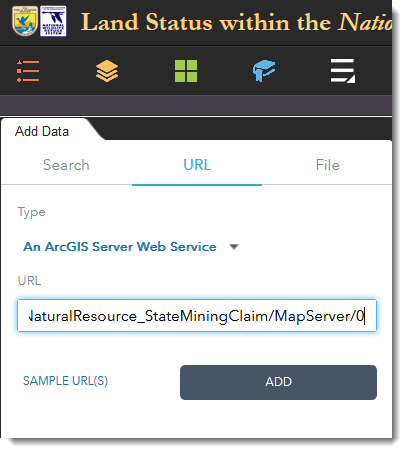
3) In the FWS Land Mapper, click the URL tab in the Add Data panel and paste the full URL that you copied in Step 2 above. Then click the Add button. The layer from the other mapper will be added to the map display of the FWS Land Mapper and listed at the top of the Layers panel.
|
Paste the URL of the layer from the other mapper into the FWS Land Mapper
|
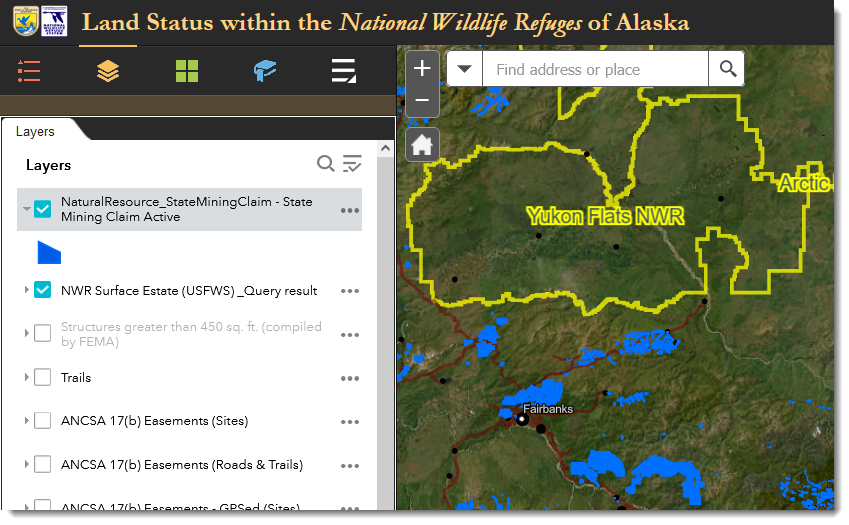
The layer from the other mapper is now shown in the FWS Land Mapper
To Remove a Data Layer
1) Click Layers in the bottom-right corner of the Add Data panel.
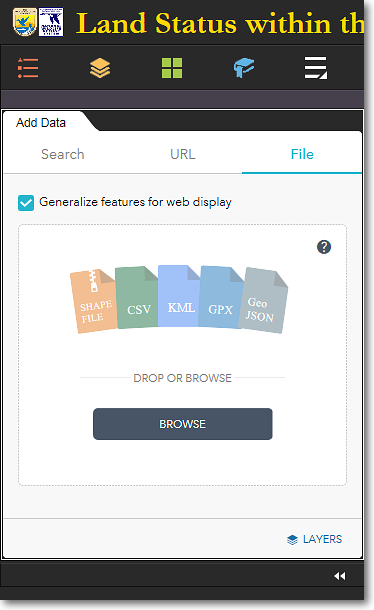
Click Layers in the lower-right corner
2) All the layers you have added will be listed in the Add Data > Layers panel.To remove a data layer, click on the trash can (Remove Layer) icon for the layer that you want to remove from the FWS Land Mapper.
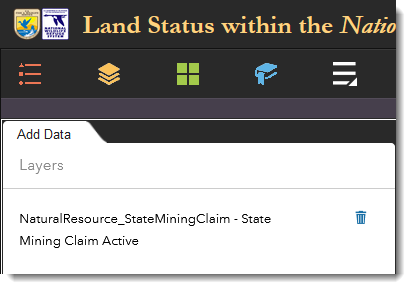
Click the trash can icon to remove a layer from the Mapper
|
|
User-added data layers are TEMPORARY Data layers that you add to the FWS Land Mapper are temporary. They are removed from the Mapper when: •You remove them manually •You close your web browser •Your clear your web browser's cache User-added data layers will be retained when... •You minimize or close the Add Data panel •You switch to another tool panel •You leave your web browser open or minimize the browser window |

The Region 7 Land Mapper was developed, and is maintained by, the U.S. Fish & Wildlife Service, Region 7, Division of Realty. Questions, comments,and suggestions should be directed to ak_realty@fws.gov
This page was last updated: Thursday, March 13, 2025