|
|
Swipe |

Often, you will want to have multiple layers turned on and visible on the map. However, this can sometimes lead to a cluttered display, making it difficult to see underlying layers or the basemap. In cases like this, you can use the Swipe tool to temporarily hide a chosen layer.
Getting Started
1) Click the More... icon on the left-hand side of the Mapper window.
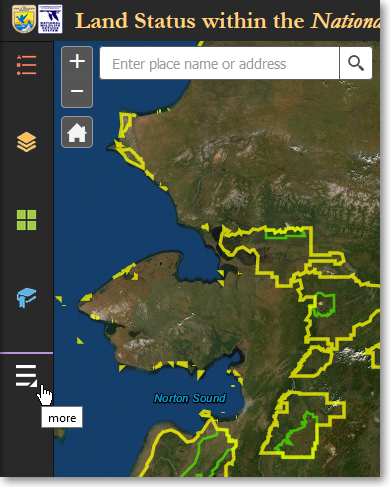
Click More... to access additional tools
2) Click the Swipe tool.
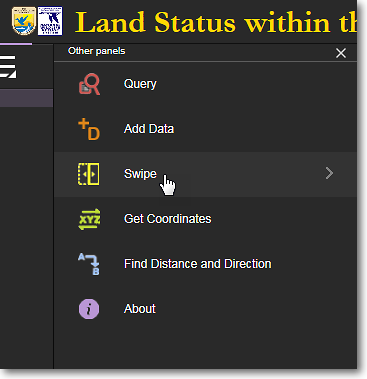
Click the Swipe tool
Default Appearance of the Swipe Tool
By default, the Swipe tool appears on the map display as a vertical white line with a drag handle in the middle of it. There is also a layer selection box in which you can select which layer you want to "swipe away" from the map display. The basic process is to first select a layer to swipe, and then drag the vertical bar left or right on the map display to either hide or reveal the layer that you selected to work with.
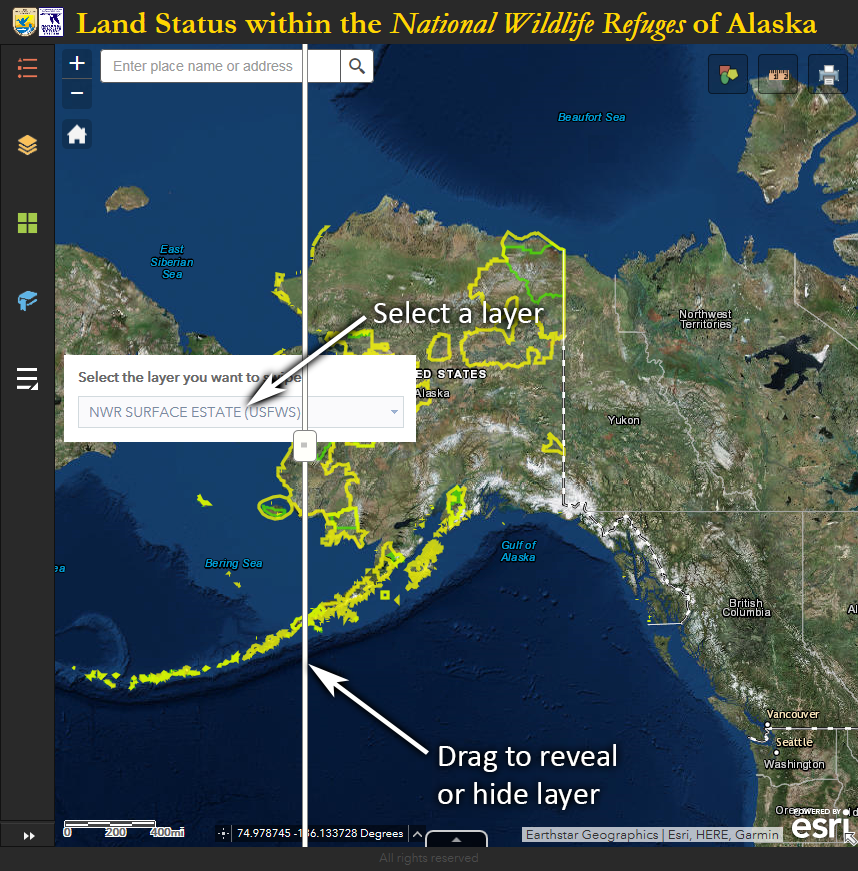
To use the Swipe tool, first select a layer and then drag the bar left and right
Swipe the NWR Surface Estate (USFWS) Layer
This example will use the Swipe tool to hide the NWR Surface Estate (USFWS) layer so that the underlying satellite image basemap can be more clearly seen.
1) Pan and zoom the the area on the map that you want to work with.
2) Select the layer that you want to swipe away. Drag the vertical bar to the left to hide the selected layer. Drag it to the right to reveal the selected layer.
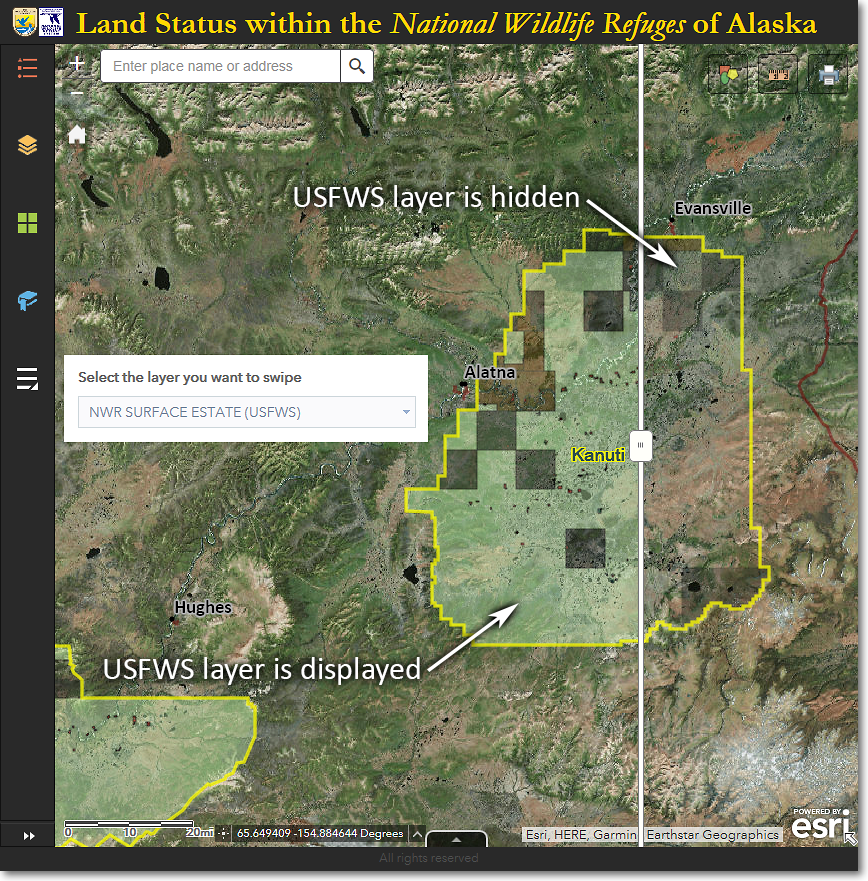
The NWR Surface Estate (USFWS) layer has been "swiped away" from the eastern third of Kanuti NWR
The Region 7 Land Mapper was developed, and is maintained by, the U.S. Fish & Wildlife Service, Region 7, Division of Realty. Questions, comments,and suggestions should be directed to [email protected]
This page was last updated: Thursday, March 13, 2025