|
|
Data Layers |

The Layers tool displays the various data layers that you can view in the Land Mapper.
The Land Mapper's Layers
The Land Mapper currently contains 25 data layers, some of which are shown in the screenshot below. All the layers can be turned on and off, moved up and down in the Layers list, and made more or less transparent. You can also turn labels for a layer on and off. This functionality allows flexibility in displaying the layers as you need them to appear in the Mapper.
By default, only some of the data layers are turned on and visible in the map when you first open the Mapper. Layers that are turned on have a check mark in from of the layer name. Click in the box to the left of a layer name in order to turn that layer on and off in the map display.
The visibility of many layers is dependent upon the display scale of the map. As you zoom in and out of the map, layers will turn on and off. This is to prevent the map display from getting too cluttered with data as you zoom out.
Layers that are turned off at the currently-viewed map scale will show in the Layers list with a light gray layer name, indicating that the layer is not visible due to the map scale. When you zoom in on the map, the layer name will change from light gray to black, and the layer will be displayed in the map area (assuming it has a check mark in front of the layer name).
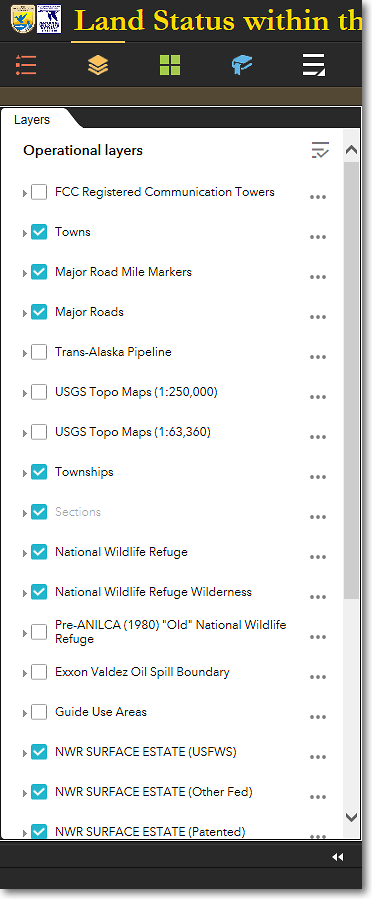
The Layers list; scroll the list to see all layers
To Show the Legends for the Layers
1) By default, all the map layers are in the collapsed state, as indicated by the small right-facing arrow to the left of the layer names. In this state, the symbol legends are not shown. To see the symbol legend for a layer, click either the layer name or the right-facing arrow to expand the layer. You will then see the legend which shows the symbology associated with each feature type in the layer.
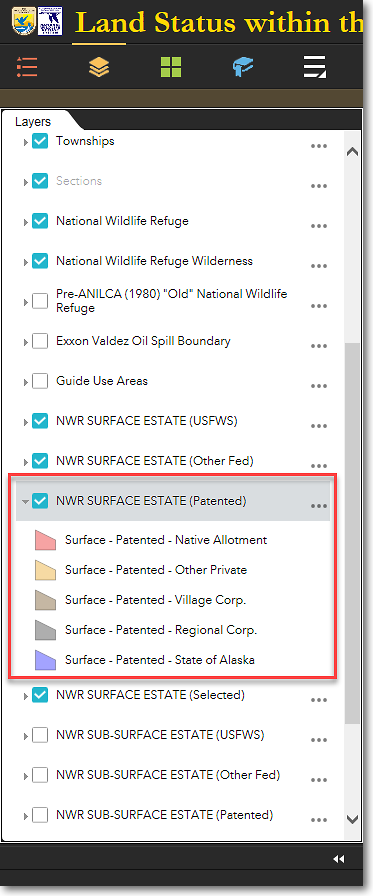
The Layers list, showing the legend for the
NWR SURFACE ESTATE (Patented) layer
Additional Layer Options
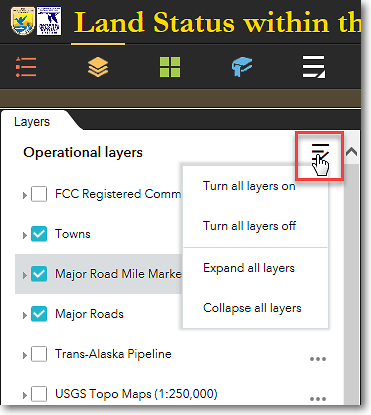
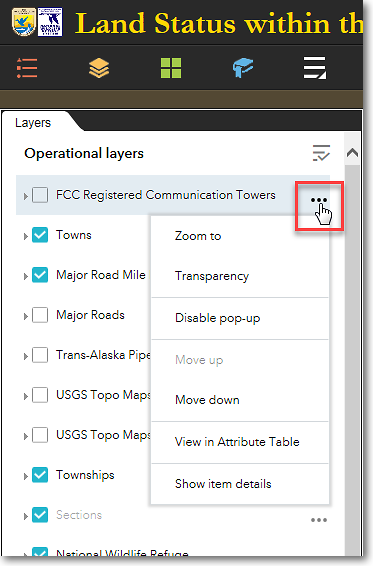
Several additional functions can be used with layers. To see these functions, click either Layers menu in the upper-right corner of the Layer list, or the menu for the individual layers (the three dots to the right of the layer names).
|
|
Layer Options Available in the Layers Main Menu You can perform the following functions via the Layer list main menu: ⚫ Turn all layers on Makes all layers visible on the map (scale-dependent) ⚫ Turn all layers off Makes all layers invisible on the map ⚫ Expand all layers Displays the legends for all layers ⚫ Collapse all layers Moves the layer down in the Layer menu |
|
|
|
|
|
Layer Options Available for each Individual Layer You can perform the following functions via the individual layer menus: ⚫ Zoom to Zooms the map to the full extent of the layer ⚫ Transparency Allows you to set the level of transparency of the layer ⚫ Disable pop-up Turns off the pop-up information window that normally displays when you click on a layer feature in the map display ⚫ Move up Moves the layer up (toward the top) in the layer list ⚫ Move down Moves the layer down (toward the bottom) in the layer list ⚫ View in attribute table Displays the attribute table of the layer ⚫ Show item details Displays technical information about the layer |
The Region 7 Land Mapper was developed, and is maintained by, the U.S. Fish & Wildlife Service, Region 7, Division of Realty. Questions, comments,and suggestions should be directed to [email protected]
This page was last updated: Thursday, March 13, 2025