|
|
Get Coordinates |

The Get Coordinates tool provides additional options and formats for obtaining and displaying coordinates on the map. Unlike the Coordinates tool at the bottom of the Mapper Window, this tool allows you to enter a specific coordinate to go to on the map, and to see the coordinates in up to nine different coordinate systems/formats.
Getting Started
1) Click the More... icon on the left-hand side of the Mapper window.
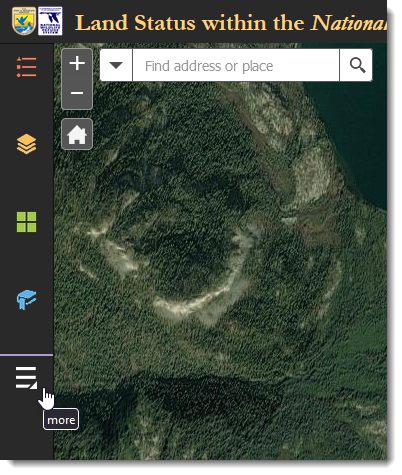
Click More... to access additional tools
2) Click the Get Coordinates tool.
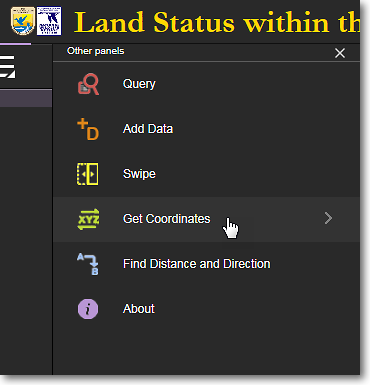
Click the Get Coordinates tool
To Get the Coordinates of a Point
1) Pan and zoom to the area on the map for which you want to get coordinates.
2) At the top of the Get Coordinates panel, for Input, click the gear icon and set the desired coordinate format and number of significant digits, then click Apply.
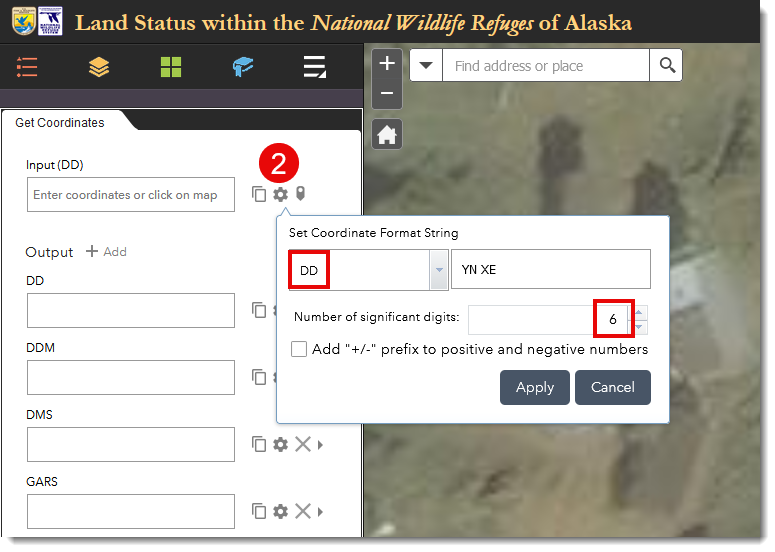
3) Click the point on the map for which you want the coordinates.
4) A push pin will be displayed on the map at the point you clicked on. The coordinates of the clicked point are now displayed in the Input field and in several other output formats in the Get Coordinates panel.
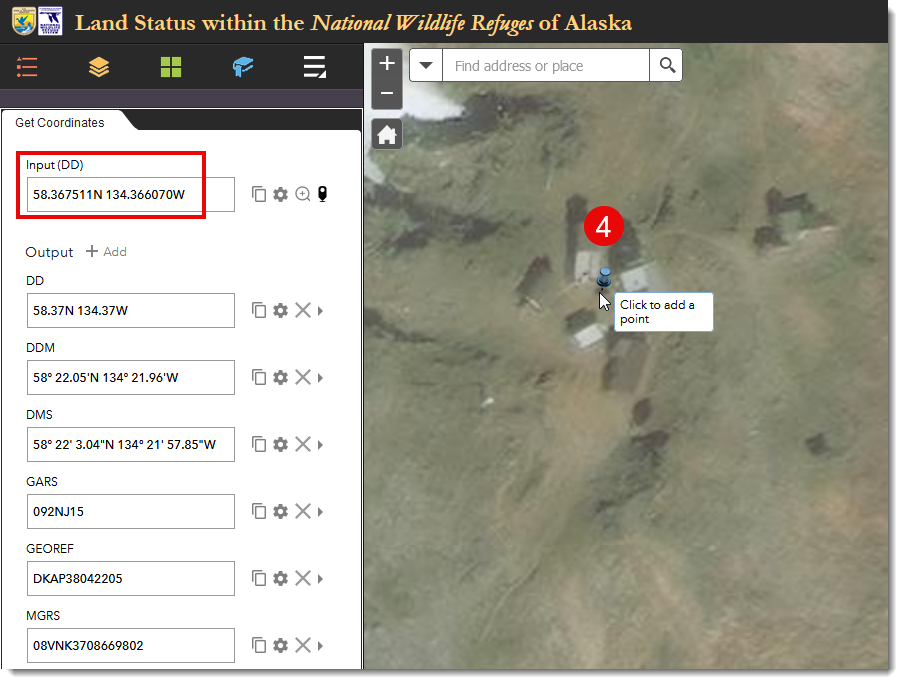
The coordinates of the clicked point on the map are displayed in several different formats. Customize
the output formats to suit your needs by clicking the gear icon to the right of each format.
To Go To a Coordinate You Enter
1) You can enter your coordinates in various formats, as determined by the input format that you select when you click on the small gear icon to the right of the Input field. For example, you can enter coordinates in decimal degree format (62.5N 152.25W) or in degree, minute, second format (62 30 00N 152 15 00W). Select your desired coordinate input format and number of significant digits, then click Apply.
2) In the Input field, delete any coordinates that might already be in the Input field and enter your own coordinates. For example, 62.5N 152.25W. Press Enter after entering your coordinates.
3) A push pin will be displayed on the map at the coordinates you entered. The coordinates of the entered point are now displayed in various formats in the Get Coordinates panel.
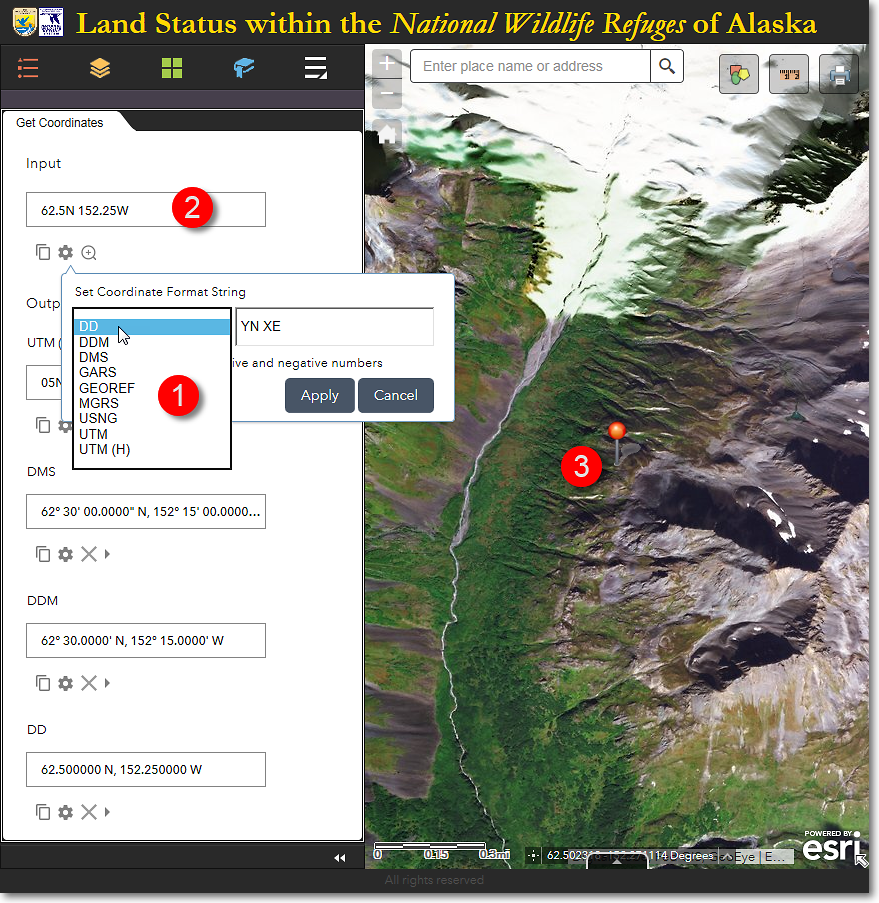
The Land Mapper, showing the location of the user-entered coordinate at 62.5° North, 152.25° West.
Additional Coordinate Options
By default, the Get Coordinates panel shows the Input box and four additional coordinate displays. You can add additional coordinate displays by clicking + Add.
Click the gear icon (Format Input) to select the desired coordinate format for each of the additional output coordinate displays.
Additional functions include copying the displayed coordinates to the clipboard, and removing a coordinate display if it is not needed.
The Region 7 Land Mapper was developed, and is maintained by, the U.S. Fish & Wildlife Service, Region 7, Division of Realty. Questions, comments,and suggestions should be directed to [email protected]
This page was last updated: Thursday, March 13, 2025