|
|
Find Distance and Direction |

There may be times when you need to know how far it is between two points, or the direction from one point to another. Alternatively, you might want to see all the area within a certain distance of a point. In these cases, you can use the Find Distance and Direction tool. The tool provides many options, so be sure to take some time to explore all the features in order to get the most value from it. Below are just a few examples of how you can use the tool.
Find the Distance and Direction between Two Points
1) Click the More icon along the left-hand side of the Land Mapper window.
2) In the list of additional tools, click Find Distance and Direction.
3) Specify your desired options in the Find Distance and Direction panel. To interactively identify the start and end points of the line on the map, click the Add point icons.
4) Click OK. The distance and direction between the two points is shown on the map. See the screenshot below for an example.
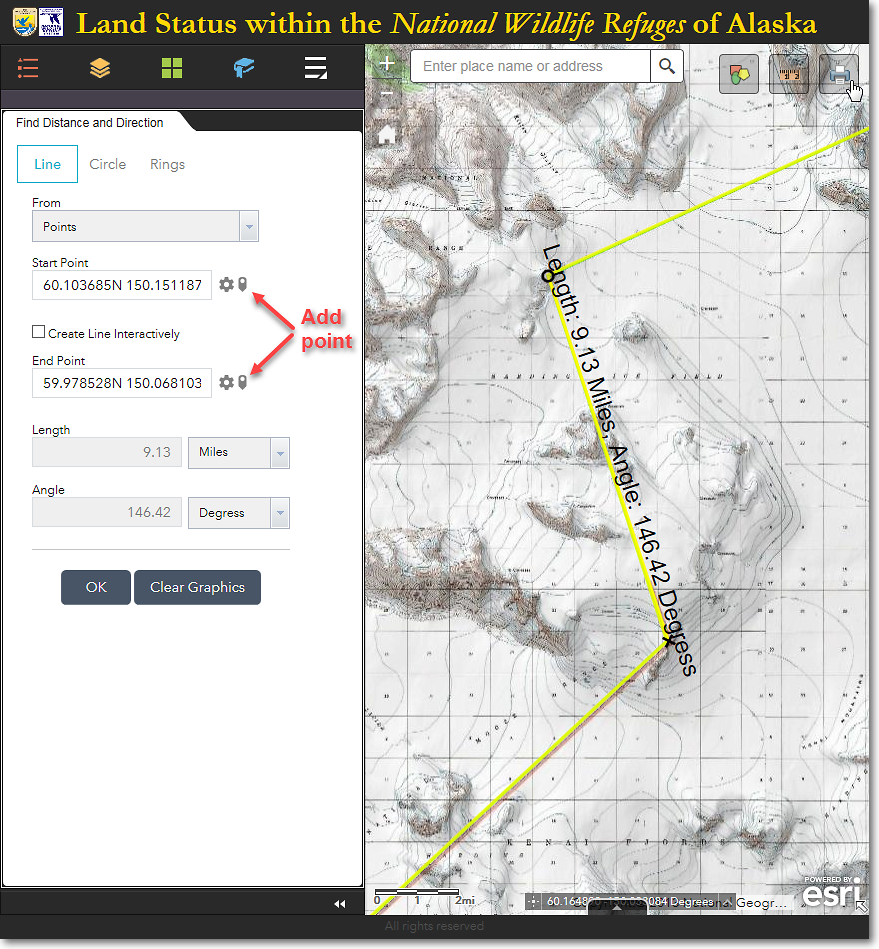
The distance between the start point (O) and the end point (X) is 9.13 miles and the direction is 146.42 degrees
To Identify All the Areas within a Distance of a Point
1) In the Find Distance and Direction panel, click the Circle option.
2) For the Create Circle From option, select Radius.
3) For the Center Point, click the Draw Circle icon and click the point on the map from which you want to obtain a distance.
4) Specify a radius distance and the desired distance unit.
5) Click OK. See the screenshot below for an example.
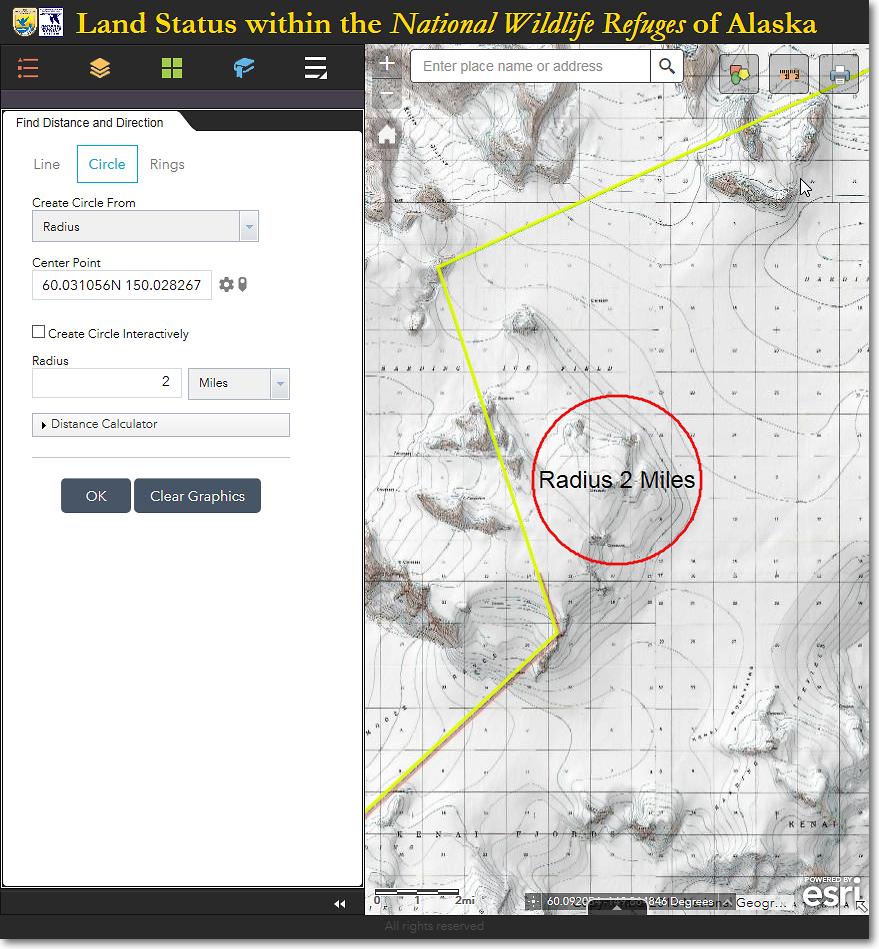
The red circle indicates the areas that are within 2 miles of the mountain summit
6) You can also use the Distance Calculator option to find all the areas that are within a specified travel time and speed from a point, as shown in the example below.
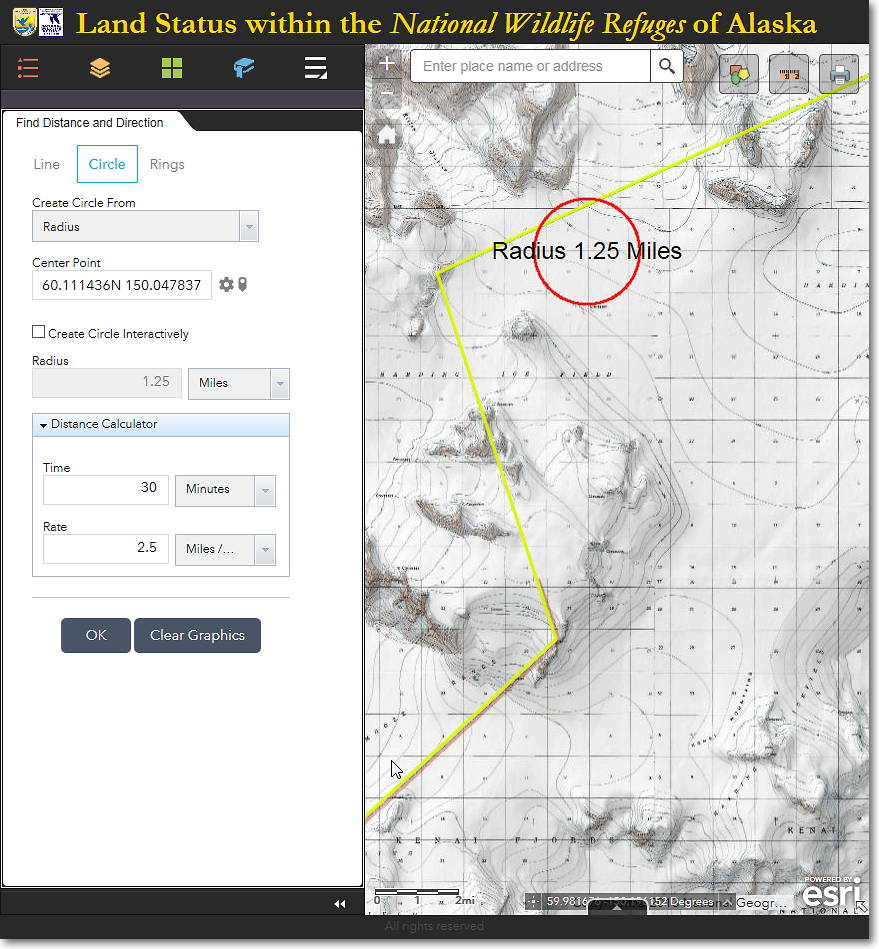
The red circle indicates the areas that are within 30 minutes, at a speed of 2.5 miles per hour, from the specified center point
|
|
Explore the Find Distance and Direction Tool The Find Distance and Direction tool has many different options that could come in handy for your purposes. Be sure to experiment with all the settings to see exactly what they do! |

The Region 7 Land Mapper was developed, and is maintained by, the U.S. Fish & Wildlife Service, Region 7, Division of Realty. Questions, comments,and suggestions should be directed to [email protected]
This page was last updated: Thursday, March 13, 2025