|
|
Browse by Clicking on the Map |

The primary method for investigating data layer features is by simply clicking a location on the map. This displays a pop-up window showing detailed information for the features in all visible data layers at the clicked location.
To Browse by Clicking on the Map
1) First, click the Layers tool and turn data layers on or off. For example, if you want to see information for features in only the National Wildlife Refuge layer, turn that layer on and turn all the other layers off. You can have all layers turned on, or only a few layers turn on, or any combination of layers turned on or off. The important thing to note is that you can see detailed information for features in a data layer only if that layer is turned on and visible in the map.
2) Pan and/or zoom the map to the area of interest, then click on a feature. A pop-up window similar to the one shown below will appear.
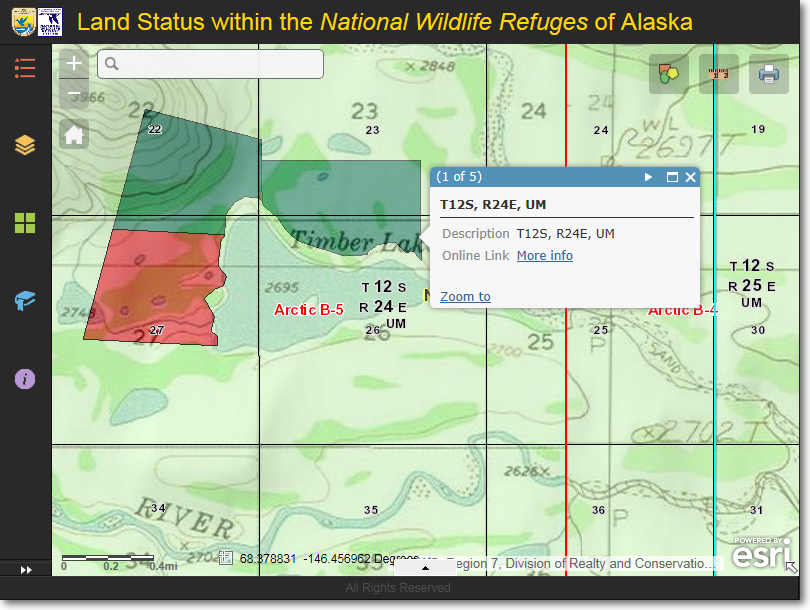
Click a feature on the map and a pop-up information window will appear. It shows information
for all data layers which have a feature at the location which was clicked
3) In the example above, the pop-up window is showing the information for the township at the location that was clicked on the map. The township is highlighted by a cyan-colored line (in this example, you can't see the entire township because the view is zoomed in to just a portion of the township). The pop-up window contains information about the township.
Notice that the text (1 of 5) is shown in the in the upper-left corner of the pop-up informational window. This indicates that there are five features, from five different data layers, that are present at the location where you clicked on the map. These five features are overlain in a stack, on top of each other, similar to five playing cards stacked together. You can cycle through the stack by clicking the white-colored, right-facing triangle in the upper-right corner of the pop-up window.
Some features in the various data layers have links to additional information. For example, in the screenshot shown above, notice the underlined More info text shown to the right of Online Link. This is a link to the online version of the Bureau of Land Management Mater Title Plat for Township 12 South, Range 24 East, Umiat Meridian. Click the link and the MTP will be displayed in a separate web browser window. Other features from other data layers also contain links to additional information. Whenever you see such a link, click it to see additional information related to the feature.
4) Below are additional screenshots showing the information for the other four features that are located at the point which was clicked on the map.
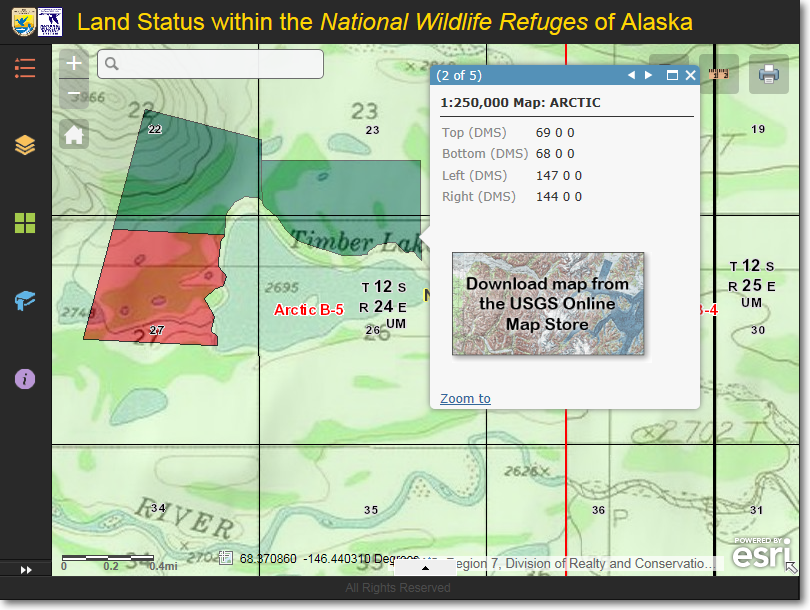
Feature 2 of 5, showing information for the Arctic 1:250,000 scale USGS topo map. Click the download
icon to go the the USGS Map Store to download a free copy of the Arctic 1:250,000 scale topo map.
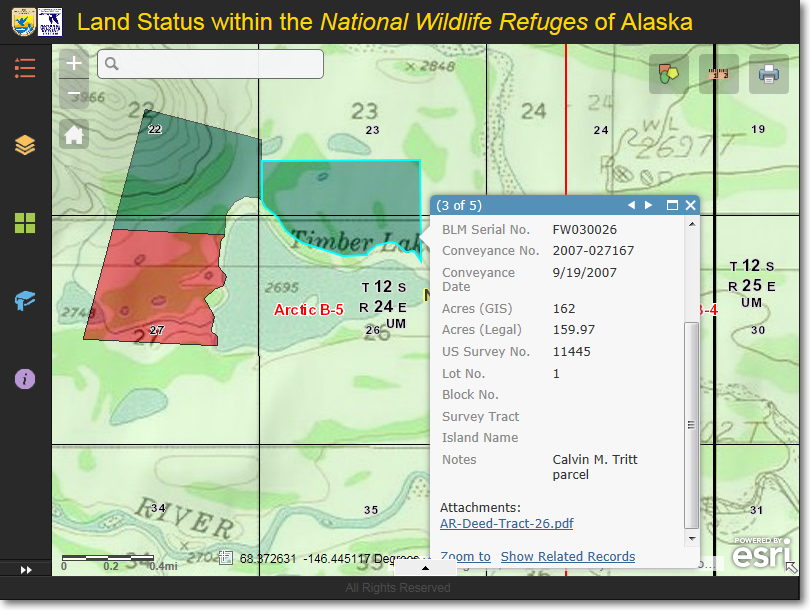
Feature 3 of 5, showing information for a parcel of land that was purchased by the U.S. Fish & Wildlife Service.
Notice that there is an attachment associated with this parcel. Click the link, AR-Deed-Tract-26.pdf, to view
additional information about the purchased parcel.
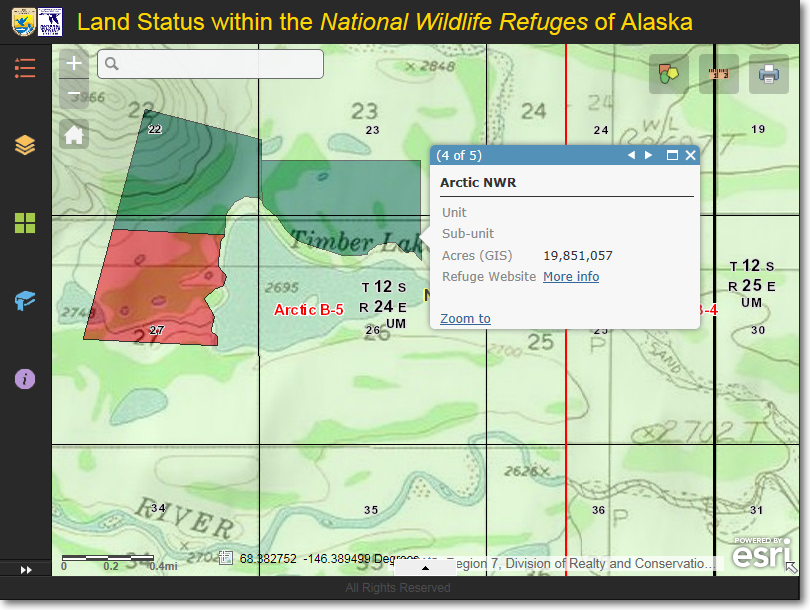
Feature 4 of 5, showing information for the Arctic National Wildlife Refuge.Here, there is a link to the Refuge's
website. Click the More info link to open the Arctic NWR web page in a separate browser window.
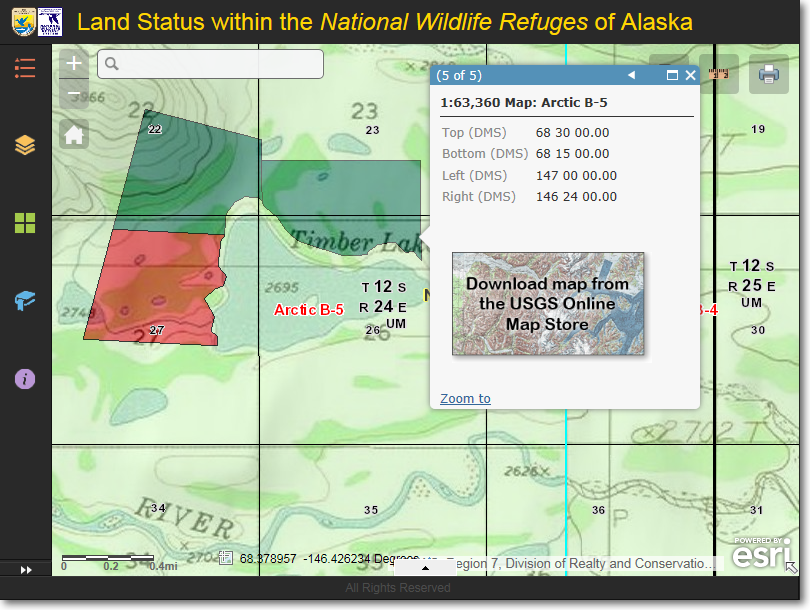
Feature 5 of 5, showing information for the Arctic B-5 1:63,360 scale USGS topo map. Click the download
icon to go the the USGS Map Store to download a free copy of the Arctic B-5 1:63,360 scale topo map.
|
|
Zoom to the highlighted parcel If you would like a more detailed view of the highlighted feature, click the Zoom to button in the lower-left corner of the pop-up window. This will zoom in to the extent of the feature. |

The Region 7 Land Mapper was developed, and is maintained by, the U.S. Fish & Wildlife Service, Region 7, Division of Realty. Questions, comments,and suggestions should be directed to [email protected]
This page was last updated: Thursday, March 13, 2025